Chapters
  1. Welcome to Omarchy!
  2. Getting Started
  3. Coming From Mac or Windows
  4. Navigation
  5. The Top Bar
  6. Themes
  7. Hotkeys
  8. Unified Clipboard & History
  9. Reminders
  10. Notices
  11. Text Extraction & Dictation
  12. Screenshots & Recording
  13. Toggles, Idle & the Screensaver
  14. Omarchy CLI
  15. Terminal
  16. Neovim
  17. AI
  18. Development Tools
  19. Shell Tools
  20. Shell Functions
  21. TUIs
  22. GUIs
  23. Browsers
  24. Commercial apps/services
  25. Web Apps
  26. Gaming
  27. Filling out PDFs
  28. Windows VM
  29. Other Packages
  30. Updates
  31. Dotfiles
  32. Shell Plugins
  33. Monitors
  34. Keyboard, Mouse, Trackpad
  35. Networking
  36. System sleep
  37. Hardware authentication
  38. Fonts
  39. Backgrounds
  40. Prompt
  41. Branding
  42. Common tweaks
  43. Making your own theme
  44. Mac support
  45. Troubleshooting
  46. FAQ
  47. System snapshots
  48. Security
  49. Omarchy on...
  50. Dual Boot Install
  51. Unattended Installs

Unified Clipboard & History

Usually on Linux, you need Ctrl + Shift + C/V to copy’n’paste in the terminal and Ctrl + C/V to do it everywhere else. That’s hard to get used to for anyone who hasn’t been born and bred on Linux! So too is the switch from super to ctrl, if you’re coming from the Mac.

Omarchy tackles both problems with unified clipboard hotkeys that work (almost) everywhere. They are:

Hotkey Command
Super + C Copy
Super + X Cut
Super + V Paste
Super + Ctrl + V Clipboard history

Note that most agent harnesses will use Ctrl + V for pasting images, but Super + V for pasting text.

Clipboard history

The clipboard history is provided by the Omarchy shell and works for both text and images. You trigger it by Super + Ctrl + V, select your entry with return, and then that’ll be placed on the clipboard ready to paste on Super + V.
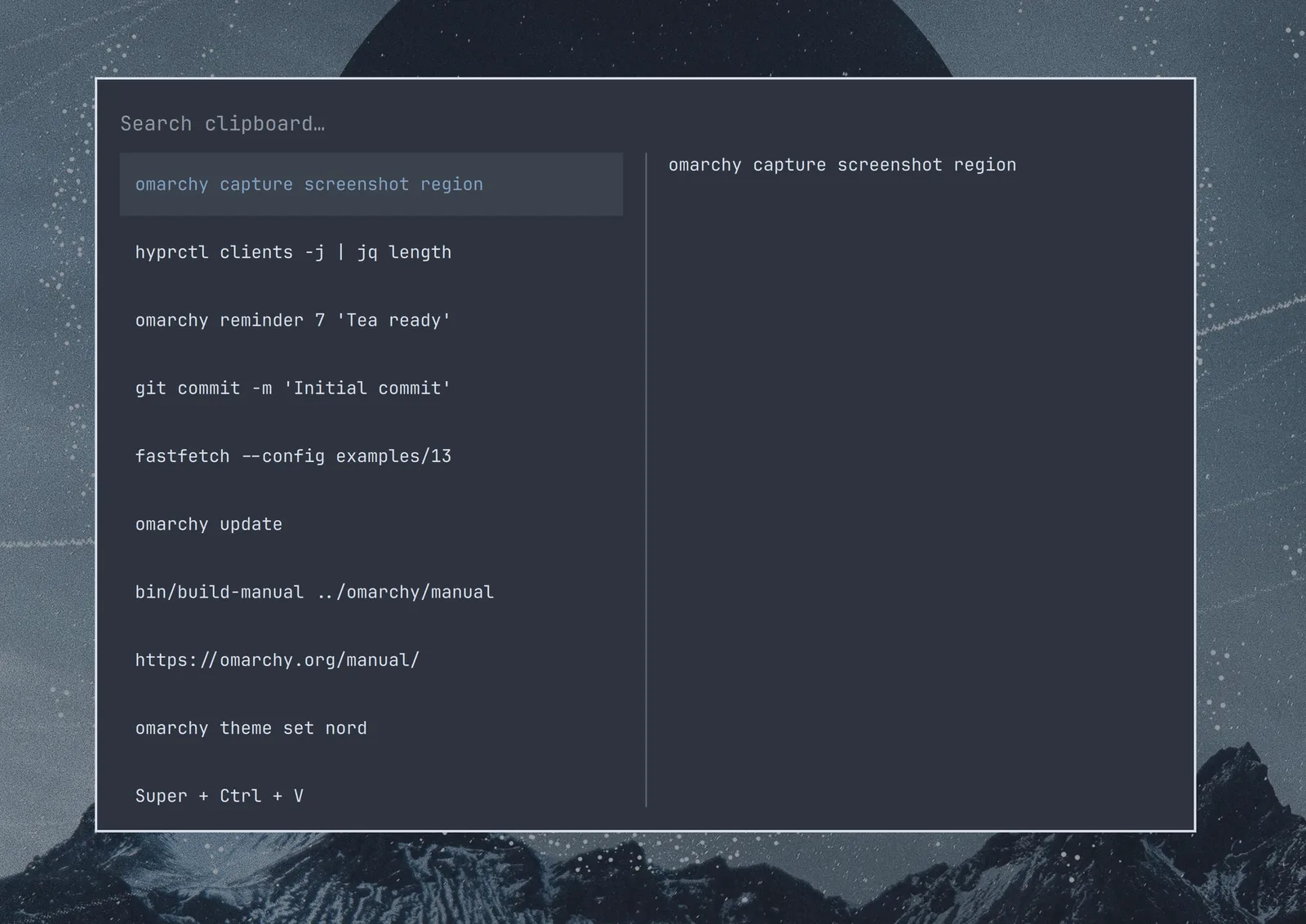
clipboard-history

You can also search the history just by starting to type:
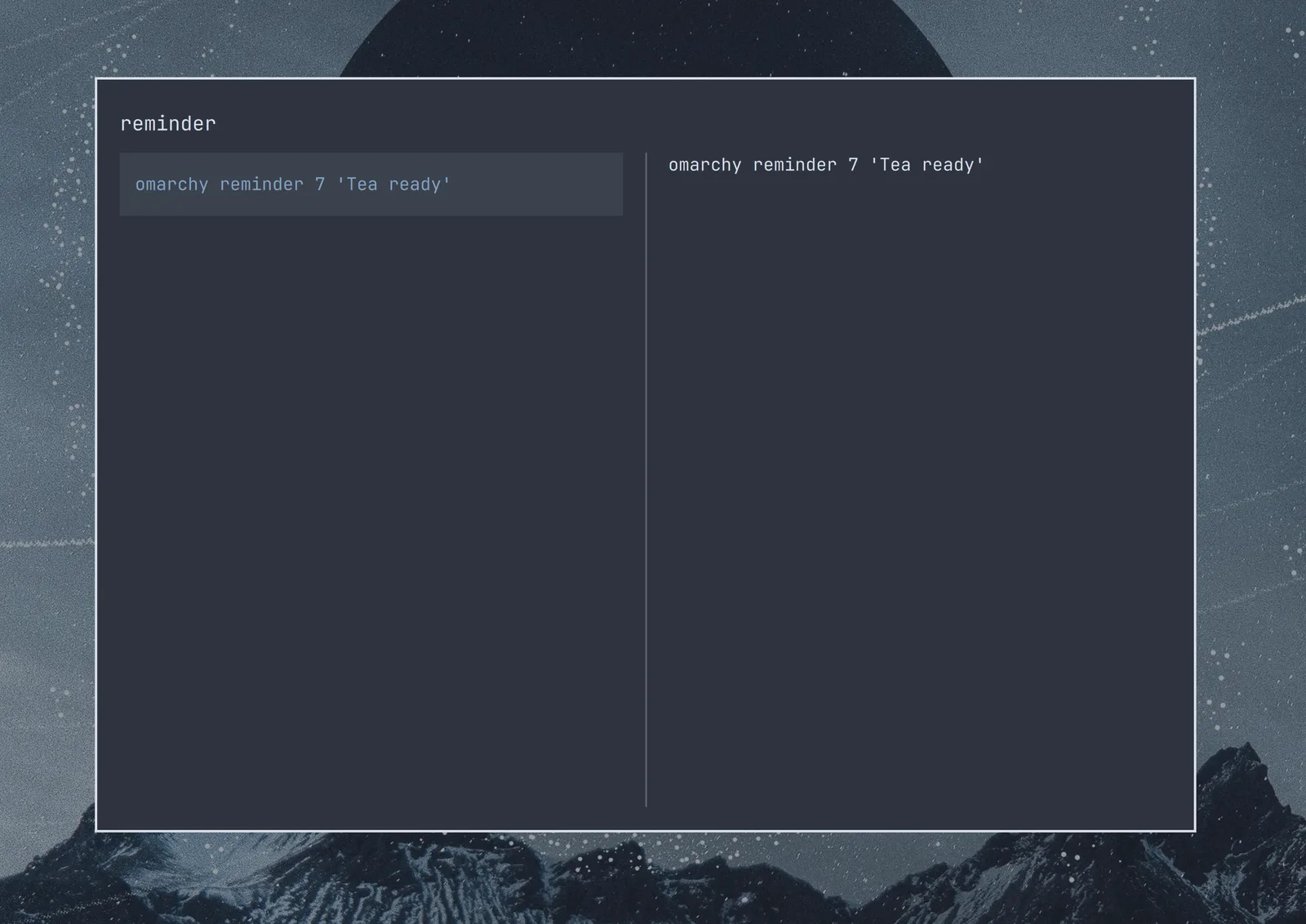
clipboard-history-search